SOLUTIONS
BY INDUSTRY
The AI-Native Legal Solution for Seamless End-to-End Legal Operations
Unity is an AI-native legal operations framework that empowers legal teams with automation, analytics and strategic control over legal spend, compliance, contracts, and risk.
Unity builds on the same trusted foundation as SimpleLegal—your core matter management, e-billing, vendor collaboration, and spend management functionality remains intact. The workflows and capabilities your team relies on today continue to exist within the Unity framework.
What’s new is the platform’s AI-native architecture and expanded functionality. Unity is designed to support intelligent automation, enhanced insights, and ongoing innovation—enabling new features and capabilities that were not previously available in SimpleLegal. In short, Unity preserves what works today while unlocking the ability to scale, automate, and evolve your legal operations for the future.
As you expand your use of Onit with Unity, Activation marks the beginning of a seamless next phase—designed to align with your team’s evolving needs and future growth. Unity is Onit’s AI-native legal operations suite, unifying matter management, e-billing, vendor collaboration, and spend oversight into one scalable platform built for the future of enterprise legal.
Activation to the Unity Framework jump-starts your transition to AI-native Enterprise Legal Management (ELM) by embedding industry best-practice configurations from day one—so you can spend less time planning and more time delivering value. Rather than a system migration, Activation is a seamless upgrade of your existing SimpleLegal environment to the new Unity framework, providing a proven foundation while preserving the flexibility to customize and scale as your needs evolve.
The Activation process is designed to give your team time, visibility, and support as you transition to Unity—without disrupting your current workflows.
Step 1: Access to Your Unity Sandbox
Your team will first receive access to a dedicated Unity sandbox environment. This sandbox is a copy of your existing SimpleLegal configuration, set up in a separate system so you can safely explore, test, and become familiar with the Unity experience. Your SimpleLegal administrative users will receive an email from Onit with a link to your organization’s unique Unity sandbox URL
Step 2: Sandbox Exploration Period
You’ll have a defined exploration window to navigate Unity, review configurations, and prepare your team for the transition. Details about your sandbox access timeframe will be communicated directly to your administrative users via email. If you’re unsure of your timeline, please reach out to your Customer Success Manager or Account Manager. Change management and training materials are also available in this Success Kit to support onboarding and internal enablement.
Step 3: Activation of Unity Production
Once your sandbox exploration period concludes, your Unity Production environment will be activated. This environment is connected to your existing SimpleLegal production instance, allowing your team to work in both systems if needed while onboarding to the new Unity interface. This ensures continuity and flexibility during the transition.
Step 4: SimpleLegal Sunset
At the end of the transition period, your SimpleLegal production environment will move to the new Unity UI. The transition date will be communicated to your administrative users via email. Once the transition is complete, your team will begin working fully in the Unity Production environment moving forward.
There are no changes to CounselGO as part of Activation. Your vendors will continue to submit invoices and collaborate through CounselGO in the same way they do today. There is no disruption to the vendor experience, no new submission process, and no additional action required from your firms. Activation to Unity does not impact how invoices are submitted or processed through CounselGO.
To ensure a smooth and successful transition to Unity, we ask that your team take a few key steps during the Activation process:
1. Review Activation Materials
Carefully read through all Activation communications and resources provided to your administrative users, as well as the materials included in this Success Kit. These resources outline important timelines, expectations, and guidance for the transition.
2. Communicate Early with Your Team
Notify your broader team about the upcoming transition as early as possible. Proactive communication helps set expectations and minimizes disruption. A change management communication template is included below for your convenience.
3. Share Training Resources
While the Unity interface is intuitive and designed to feel familiar, we strongly recommend sharing the available training materials and resources with your team. Preparing users in advance will help ensure confidence and continuity once Unity Production is live.
4. Reach Out with Questions
If you have any questions or need additional support at any point during Activation, please contact our Support team, your Customer Success Manager, or your Account Manager. We’re here to help make this transition seamless.
5. No Technical Set up Required
You do not need to take any technical action for Activation to occur. On your scheduled Activation date, your system will automatically transition to Unity, and Onit will manage the move behind the scenes to ensure a smooth and seamless experience. Your Activation date and new Unity URL will be communicated directly to your administrative users in advance so your team knows exactly what to expect. Until then, you can continue working as usual.
To help your team prepare for the transition, we recommend sharing the Unity training resources in advance. These cover the updated interface, key navigation changes, and tips for getting started.
Unity Quick Start Guide
Navigating Unity ELM
Accessing Unity ELM
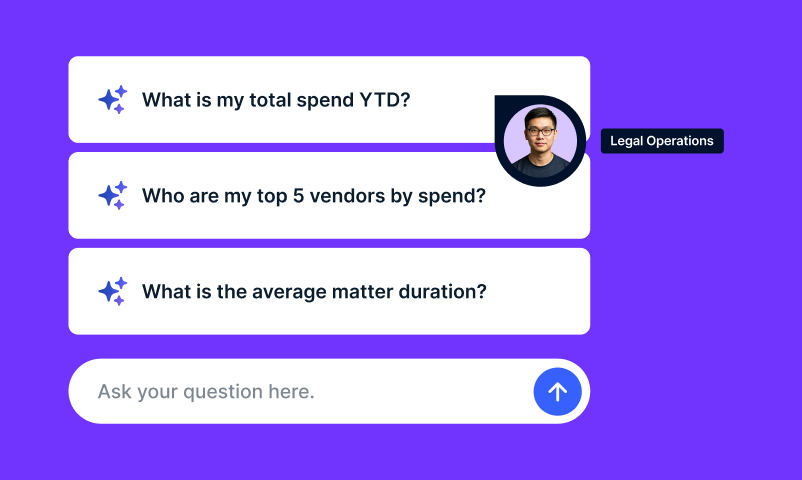
Ask Unity User Guide
Email Whitelisting Guidance
To ensure you receive all Activation and Unity-related communications, please ask your IT or email administrator to safelist or whitelisting the onit.com domain. We recommend whitelisting the following:
[email protected]
[email protected]
[email protected]
and [email protected]
For teams that prefer a guided walkthrough, Onit is offering an educational session covering Unity activation, key updates, and what’s changing (and what’s not), followed by live Q&A.
| Date | Session |
| March 30, 2026 | Meet Unity: Where AI Meets Legal Operations |
| April 13, 2026 | Meet Unity: Where AI Meets Legal Operations |
| April 27, 2026 | Meet Unity: Where AI Meets Legal Operations |
| May 11, 2026 | Meet Unity: Where AI Meets Legal Operations |
| May 27, 2026 | Meet Unity: Where AI Meets Legal Operations |
| June 2, 2026 | Meet Unity: Where AI Meets Legal Operations |
| June 22, 2026 | Meet Unity: Where AI Meets Legal Operations |
| June 30, 2026 | Meet Unity: Where AI Meets Legal Operations |
| July 20, 2026 | Meet Unity: Where AI Meets Legal Operations |
Communication is critical to a successful activation. To best support your internal teams and vendors during the rollout of Unity, below is a template designed to guide awareness, adoption, and readiness.
This template is intended to be flexible starting points. You are encouraged to tailor the language, timing, and details to reflect your organization’s voice and internal process. Clear, consistent communication will help ensure a smooth transition, minimize confusion, and set expectations ahead of go-live.
How to Use the Template
Internal Team Email Template
From: Client SimpleLegal Administrator or Project Sponsor
To: Internal Legal Team / Relevant Stakeholders
Subject: [COMPANY] Introducing Unity: Our New Legal Operations Environment
Body:
[COMPANY] is upgrading our SimpleLegal to Unity. Unity will serve as our central hub for legal work and will help streamline how we manage matters, vendors, invoices, and legal spend while improving visibility and consistency across the team.
Unity brings together our legal operations processes into a single, connected experience. This upgrade supports [COMPANY]’s goals around efficiency, standardization, and improved insight into legal activity and spend.
With Unity, internal team members will be able to:
– Create and manage legal matters, accessed through the Unity environment
– Assign matters to approved vendors for billing and collaboration
– Review invoices submitted by vendors and law firms through the Unity vendor portal, CounselGO (LEDES and PDF formats)
– Apply [COMPANY]’s approval workflows and billing rules automatically
– Ensure approved invoices are processed directly to Accounts Payable
– Report on legal matter and spend data from a single source of truth
Unity is slated to go live in [month of designated go-live date]. Ahead of go-live, to prepare for the transition, below are the necessary training sessions. These cover the updated interface, key navigation changes, and tips for getting started.
If you have any questions about Unity or the new legal operations process, please reach out to [client implementation lead or project sponsor].
As part of the Unity platform and its AI-powered capabilities, new subprocessors are used to support Spend Agent and Unity e-Billing functionality. These subprocessors are listed in Table 3 on Onit’s Sub-processors page: https://www.onit.com/sub-processors/
Unity includes AI-powered features, and the applicable terms are outlined in Sections 4.6 and 12 of the Terms of Service, as well as in the Product Terms for Spend Agent and Unity e-Billing.
For the most up-to-date information, please refer to the official sub-processors page linked above. If you have any questions about the additional sub processors or the use AI, please reach out to your CSM.
Q: What makes Unity different from heritage Onit interfaces?
A: Unity introduces an AI-native, modern UI that unifies all Onit solutions—such as SimpleLegal, ContractWorks, ReadySign, CounselGO, and more—into a cohesive, scalable framework. This technical foundation allows us to continuously adapt, enhance, and update our solutions with greater speed and consistency across platforms.
Q: How does Onit ensure I’m not just activated, but adopted successfully?
A: Onit’s success model includes continuous Customer Success engagement, community programs, customer advisory boards, roundtables, and feedback loops under the OnitCX umbrella.
Q: How can I extend Unity to meet unique workflow needs?
A: Use Unity’s Workflow App Studio for out-of-the-box workflows or build custom automations with no code. Enhance operations further using AI Agent Studio.
Q: Where do I find training materials and release updates?
A: Head to the Resource Center. Stay informed via Onit’s blog and newsroom.
Q: What is Spend Agent, and why does it matter?
A: Spend Agent is an AI-native invoice review tool embedded in Unity. It automatically validates invoices against your guidelines, offers explainable AI feedback, speeds approvals, and strengthens vendor relations.