SOLUTIONS
BY INDUSTRY
Welcome to Unity’s Invoice Validation Rules Examples and Instructions! You’ll find important information regarding the process, setup, and possible configuration of Unity’s Invoice Validation Rules.
Billing guidelines can be complex. Unity’s Invoice Validation Rules Examples and Instructions can provide an overview of the common configuration and rules. Whether you want to implement basic rules or explore advanced strategies to enhance your existing processes, we’ve provided a list of ideas that you can easily build upon.
Please note: Invoice Validation Rules are unique to each environment. The provided examples and configurations may need to be adjusted to adhere to your needs and/or billing guidelines.
Invoice Validation Rules provide the ability to take action on incoming vendor invoices based on set fields within your environment. In laymen’s terms, they are comprised of an if/then scenario, meaning, if a set of conditions are met then an action will occur. Your team will be able to select the set of conditions and the subsequent action using our Invoice Validation Rules.
For example, if the practice area on an invoice is Litigation and the invoice is over $10,000, then we will flag an invoice for review.
Prior to building your rules, Unity recommends the following training modules to better understand how to use and maintain your rules
Basic maintenance of your rules to begin drafting and building your Invoice Validation Rules
1. To get started, click Add Rule in the top-right corner of the rules list page.
2. Title your rule. Enter information for the following fields:
3. Add a Condition. Conditions are statements that set which criteria must be met for the action to trigger. A rule can have one or multiple conditions depending on how broad or narrow the criteria. For example, a simple rule can have a condition that looks for and flags line items with specific expense codes. A more complex rule, on the other hand, can have multiple conditions to look for and adjust line items with specific expense codes that exceed a threshold.
4. Add an Action. Click + Add Actions from the right side of the Rule Editor.
Select the action type (e.g., Flag Invoice, Add Activity Code, etc.). For more detailed information on supported actions, including how they are applied when a rule is triggered, review Rule Actions. Complete the additional required/optional fields for the action, such as entering a default comment.
5. Save rule. Click Save Rule in the bottom-right corner. By default, this will store the rule as inactive, which is recommended for all new rules.
Making a copy of an existing invoice validation rule is useful if:
There are two ways to clone a rule:
Option 1: Click on the … (more) option from the rules list page and select Clone.
Option 2: Open the rule and select Clone from the … (more) menu in the top-right corner.
This will take you to the cloned rule, which is automatically set to inactive. The Name field populates “(Clone)” followed by the original rule’s name. Make sure to customize the name and other fields.
The remaining fields (i.e., Name, Description, and Category) and the conditions and actions are copied over from the original rule as-is. Modify and/or add conditions and actions and then click Save rule in the bottom-right corner.
Click on a rule name from the list page to open the Rule Editor.
Alternatively, you can click on the … (more) option at the end of the row and select Edit.
From the Rule Editor, you can update the name, description, category, conditions, and/or actions. Click Save Rule in the bottom-right corner when finished.
| Action | Description | Example Use Case |
| Flag Invoice | Add a comment to an invoice record to describe a potential billing guideline violation before it lands in the review queue. | If the total for an IP invoice exceeds $6000.00, then flag the whole invoice with a comment describing the billing guideline violation. |
| Flag Line Item | Add a comment and flag to a line item to describe a potential billing guideline violation before it lands in the review queue. | If an invoice has Task Codes for administrative tasks that are not billable, then flag the line items and add a comment. |
| Reject Invoice | Reject an invoice before it lands in the review queue if it is unacceptable based on billing guidelines. | If an invoice does not include a previously discussed vendor discount, then auto-reject the invoice. |
| Adjust Line Item Total | Adjust the total for a line item to a selected amount before the invoice lands in the review queue. | If an invoice for US provisional patents has a line item total that exceeds $6000.00, then auto-adjust the line total to $6000.00 per AFA. |
| Adjust Line Item Rate | Adjust the rate for a service on a line item based on billing guidelines or vendor agreements before the invoice lands in the review queue. | If an invoice for a litigation matter includes the keyword “discovery motion” for a line item description and the rate exceeds $400.00, then auto-adjust the line item rate to $400.00. |
| Add Activity Code | Assign an Activity Code to a line item before the invoice lands in the review queue. | If an invoice includes the keyword “research” in the line item description but the Activity Code is empty, then set the Activity Code to A102. |
| Add Expense Code | Assign an Expense Code to a line item before the invoice lands in the review queue. | If an invoice includes the keyword “copy” or “copied” in the line item description but the Expense Code is empty, then set the Expense Code to COPY. |
| Add Task Code | Assign a Task Code to a line item before the invoice lands in the review queue. | If the Matter Group for an invoice is Litigation and the line item description includes the keyword “deposition,” then set the Task Code to L330. |
Please note: Invoice Validation Rules are unique to each environment. The provided examples and configurations may need to be adjusted to adhere to your needs and/or billing guidelines.
Scenario: Flag line items for keywords related to copies.
Configuration:
—
Scenario: Flag invoice description for keywords related to resubmission.
Configuration:
—
Scenario: Adjust a line item to “0” for copy expense codes.
Configuration:
Scenario: Flag litigation line items that are missing expense line item type.
Configuration:
—
Scenario: Flag expense line items where the expense code is blank.
Configuration:
Scenario: Flag line items that contain keywords for “copy” and are more than “0.”
Configuration:
—
Scenario: Flag negative line items for a specific matter.
Configuration:
Scenario: Flag negative line items for a specific matter.
Configuration:
Scenario: Flag a total spend limit for a matter.
Configuration:
—
Scenario: Flag an annual spend limit for a matter and vendor combination.
Configuration:
—
Scenario: Flag a total spend limit for an activity code for a matter and vendor combination.
Configuration:
—
Scenario: Flag a total spend limit for a designated start and end date for a matter and vendor combination.
Configuration:
Scenario: Flag an expense code for a specific vendor.
Configuration:
—
Scenario: Flag multiple expense codes.
Configuration: After creating and labeling your rule, add condition for Line Item Expense Code – Is one of and input applicable codes (e.g. E107, E108, X112, X113).
—
Scenario: Flag for a specific code set.
Configuration: After creating and labeling your rule, add condition for Line Item Activity Code – Contains and input either the first letter of the code set (e.g. “L” or “A”) or the letter and number combination (e.g. “L3” or “B2”).
—
Scenario: Flag expense line items where the expense code is blank.
Configuration:
Scenario: Validate an invoice against a vendor Yes/No custom attribute.
Configuration: After creating and labeling your rule, add condition for Vendor – [Custom Attribute] and input applicable value (e.g. Yes/No, list value). Note: Any custom attribute type may be used (e.g. Yes/No, text, list, currency)
—
Scenario: Validate an invoice against a selected vendor currency.
Configuration Step 1: Create a vendor currency custom attribute.
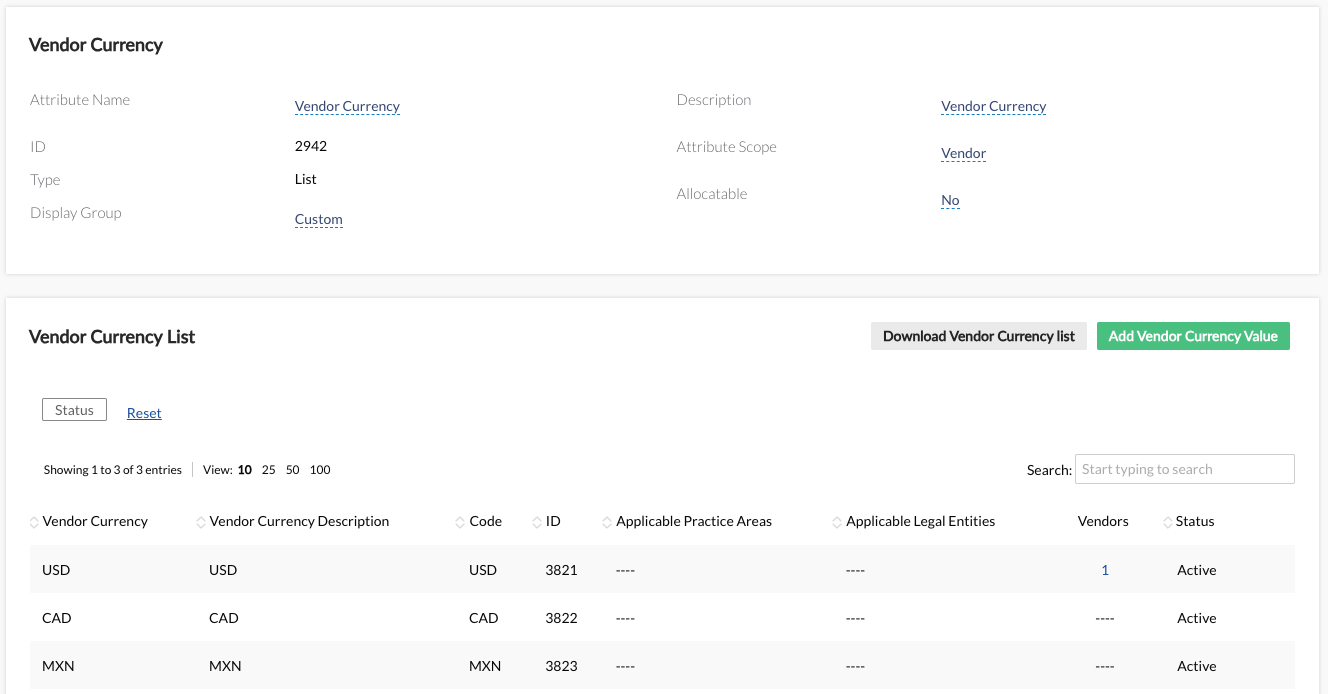
Configuration Step 2: Assign vendor currencies to vendors. Locate the vendors’ profile and assign the currency using the newly created custom attribute. Note: Unity’s bulk functionality can also be utilized.
Configuration Step 3:
Configuration Step 4: Clone your rule from Step 3 and update the values to the next currency value until all currencies are covered.
—
Scenario: Flag an invoice associated with multiple custom attribute list values.
Configuration: After creating and labeling your rule, add condition for Matter – [Customer Attribute] id – Is one of of and input applicable custom attribute values (e.g. Product A, Product B). Note: Any custom attribute type may be used (e.g. Yes/No, text, list, currency)
Scenario: Validate a vendor discount.
Configuration:
—
Scenario: Validate a vendor discount against a custom attribute. Note: This is typically reserved for Unity environment’s with a large volume of vendors with flat discounts. 10+ vendors with discounts is the threshold we typically encounter but is variable based on how your team decides to manage your discounts.
Configuration Step 1: Create a custom list attribute for the vendor discount rate (e.g. Vendor Flat Discount Rate) scoped to Vendors and create a list value for each discount rate to be applied to all vendors.
Configuration Step 2: Assign a discount rate to applicable vendors.
Note: Unity bulk functionality can also be utilized.
Configuration Step 3:
Configuration Step 4: Clone your rule from Step 3
Configuration Step 5: Update the following rule values to the new discount rule.
Scenario: Vendor ABC has three tiers of discounts with the following structure
Configuration Step 1: Build your tier 1 threshold rule. Note: Multiple vendors can be assigned to tier rules if they share the same tier thresholds and rates.
Configuration Step 2: Clone your rule from Step 1.
Configuration Step 3: Update the following rule values to the new discount rule tier and rates.
Configuration Step 4: Build your tier 2 threshold rule.
Configuration Step 5: Clone your rule from Step 4.
Configuration Step 6: Update the following rule values to the new discount rule tier and rates.
Configuration Step 7: Build your tier 3 threshold rule.
Configuration Step 8: Create additional Tiers by replicating Step 7 until all tier rules are created for the vendor.