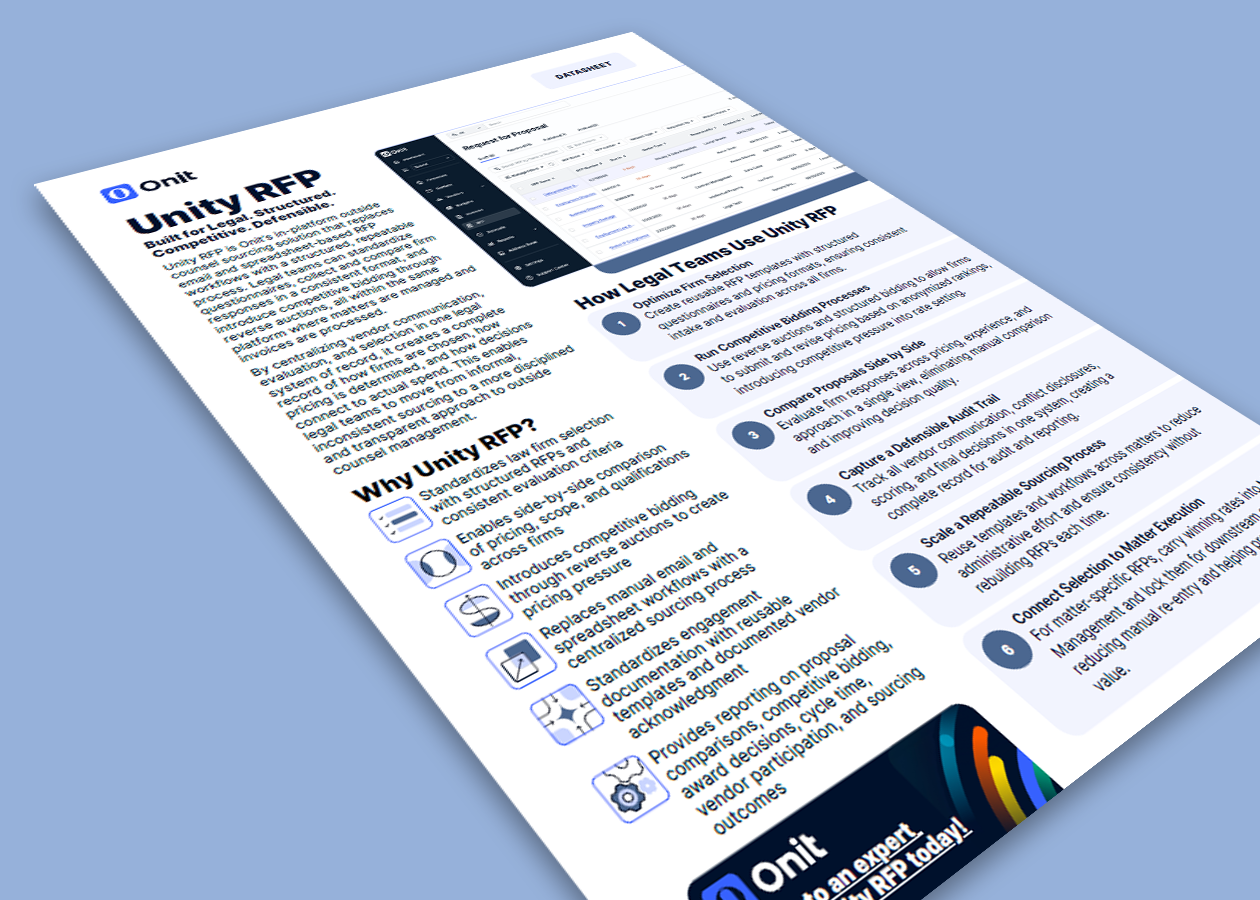
Built for legal. Structured. Competitive. Defensible.
Unity RFP is Onit’s in-platform outside counsel sourcing solution that replaces email and spreadsheet-based RFP workflows with a structured, repeatable process. Legal teams can standardize questionnaires, collect and compare firm responses, and introduce competitive bidding through reverse auctions, all within the same platform where matters are managed and invoices are processed.
Download the datasheet to learn how legal teams use Unity RFP to standardize firm selection, introduce competitive bidding, and create a defensible record of sourcing decisions tied directly to legal spend.
In this datasheet, you’ll learn about:
Standardize law firm selection with reusable RFP templates and consistent evaluation criteria
Introduce competitive bidding through reverse auctions with anonymized rankings
Compare proposals side by side across pricing, experience, and approach in a single view
Capture all vendor communication, conflict disclosures, scoring, and final decisions in one auditable record
Link awarded proposals directly to matters, vendors, and billing workflows
Practical ways legal and administrative teams can reduce bottlenecks, improve visibility, and keep campus work moving
Every college and university faces “sticky spots” that slow progress across campus. From research agreements waiting on approvals to contract bottlenecks, outside counsel spend tracking, and last-minute reporting requests, legal and administrative teams are being asked to support more stakeholders with limited resources.
In this guide, you’ll explore six of the most common operational challenges higher education institutions face today and learn practical strategies for creating more efficient, transparent, and connected processes. Discover how leading institutions are reducing manual work, improving accountability, and gaining the visibility needed to support faculty, administrators, researchers, and campus leadership.
In this guide, you’ll learn how to:
Bring order to requests coming from across campus
Keep approvals moving without losing accountability
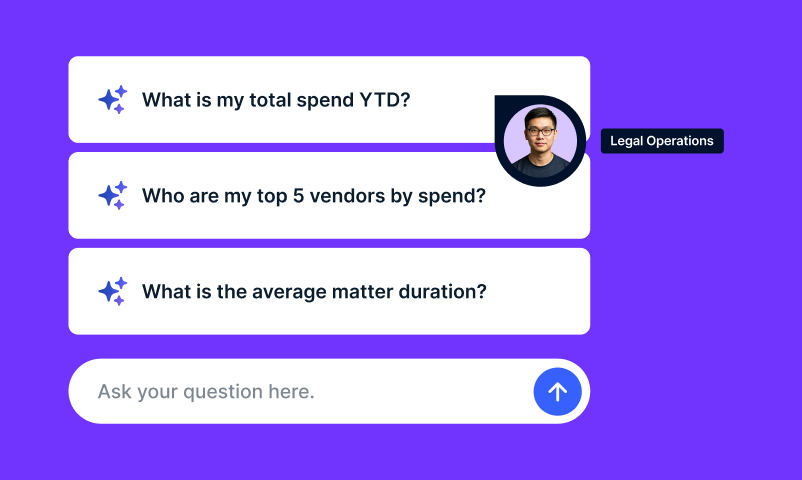
Ask about spend. Act on legal requests. Automate contract review work.
Legal teams are being asked to move faster, control outside counsel costs, improve service to the business, and manage contract risk with fewer manual steps. But the information needed to do that work is often buried across reports, inboxes, intake forms, matter records, invoices, vendors, and contract repositories.
Join Onit for a product launch webinar featuring the latest AI releases across Unity ELM, Unity LSR, and ContractWorks Premium. See how Onit is bringing AI into the day-to-day work legal teams already manage, from answering spend questions and triaging legal requests to reviewing contracts and keeping contract data actionable.
In this session, you will:
See how Onit’s latest AI innovations are reshaping legal operations across spend management, legal intake, and contract lifecycle management
Explore practical applications of AI that help legal teams move from insight to action within existing workflows
Understand how governed data, workflow automation, and AI-assisted decision-making can improve operational performance
Gain a roadmap for leveraging emerging legal technology to increase efficiency, visibility, and business alignment
This is how legal teams move beyond isolated AI tools and bring intelligence directly into the workflows that drive legal operations.
This webinar is being recorded and uses AI to generate transcripts, summaries, and insights to improve eachattendee’s experience and we may use such actionable insights in accordance with our privacy policy (Onit’s Privacy & Cookie Policy Explained! #LegalTech). By attending, you acknowledge and consent to this use.
Outside counsel selection has a direct impact on legal spend, matter outcomes, and business confidence in the legal function.
Yet many legal teams still manage RFPs through scattered emails, inconsistent spreadsheets, and disconnected review cycles. The result is limited visibility into pricing, inconsistent evaluations, and decisions that can be difficult to compare, defend, or repeat.
Let’s change that.
Join us for a demo of Unity RFP and see how legal teams can:
Standardize how firms are invited, evaluated, compared, and selected
Create competitive pricing pressure through structured bidding workflows
Compare pricing, staffing plans, and proposal terms in one place
Capture evaluations, communications, and award decisions in a complete audit trail
Connect sourcing decisions directly to legal work and spend management
This is how legal teams bring more structure, transparency, and accountability to outside counsel selection.
This webinar is being recorded and uses AI to generate transcripts, summaries, and insights to improve eachattendee’s experience and we may use such actionable insights in accordance with our privacy policy (Onit’s Privacy & Cookie Policy Explained! #LegalTech). By attending, you acknowledge and consent to this use.
An RFP (Request for Proposal) is a structured process that allows your team to evaluate and select vendors for legal work. Through an RFP, your team can outline their needs, requirements, and expectations, and invite vendors to submit proposals that demonstrate their qualifications, approach, and pricing.
Within Counsel Exchange, the RFP feature provides a streamlined way for vendors to respond to these requests. Vendors can complete your team questionnaires, highlight their experience and differentiators, and submit competitive pricing—all within a single, guided workflow.
This creates a more transparent and efficient process for both your team and vendors, making it easier to compare options, communicate value, and ultimately select the right partner for the work.
What is “Activation?”
Activation for RFP marks the rollout of the RFP module in Unity ELM, providing immediate access for your vendors to this functionality within Counsel Exchange. As part of this activation, your team can explore and trial the RFP feature at no cost, allowing them to evaluate how it fits into their vendor selection and engagement workflows.
Through Activation, your team can begin issuing Requests for Proposal, and vendors can respond through a guided, centralized experience—making it easier to compare submissions, communicate value, and make informed decisions.
What is the activation process?
June 15 – Activation Communications Begin
Your team will begin receiving communications from Onit outlining the RFP module, including key dates, expectations, and access to training and supporting materials to help you prepare.
July 15 – RFP Module Launch
The RFP feature will be activated for all Unity environments. Your team will receive a set number of credits to trial the functionality at no cost and begin creating and managing Requests for Proposal.
After July 15 – Ongoing Access and Expansion Options
Following launch, your team can continue using their trial credits and evaluate the RFP functionality. If additional credits are needed, you can connect with your Account Manager to discuss options for expanding usage.
Is there a cost associated with RFPs?
Your team will receive a set number of RFP credits at no cost as part of Activation. These credits allow you to explore and trial the functionality, including issuing Requests for Proposal and evaluating vendor responses within Counsel Exchange.
If you choose to exceed the included credits or are interested in expanding to a higher usage tier, you can connect with your Account Manager to discuss available options and pricing.
What is a “credit?”
A credit is used each time you “publish” or send an RFP to vendors.
You can create and edit as many draft RFPs as needed at no cost. A credit is only consumed when you take the “Publish” action and send the RFP to vendors.
As part of Activation, your team will receive an initial allocation of free credits to explore the RFP functionality. If you would like to purchase additional credits or discuss an unlimited license option, please reach out to your Account Manager or Customer Success Manager.
What is required of vendors during activation?
No action is required from vendors during Activation.
If you plan to begin using the RFP functionality, we recommend notifying your vendors (in addition to our standard communication to vendors) so they are aware of the new capability and can be prepared to respond to Requests for Proposal within Counsel Exchange.
Granting Team Access to Unity RFP
When Unity RFP is activated in your Unity environment, access can be granted to the team members who will be involved in creating, managing, or overseeing RFPs. Please note that not all users are required to have access to Unity RFP functionality.
How to Grant a Unity User Access to Unity RFP
On July 15, Unity administrative users will automatically receive access to Unity RFP.
After launch, your Unity administrators can grant access to additional users based on your organization’s needs. This gives your organization flexibility to determine who can access and manage the RFP process.
Navigate to Settings > Users and select the user you would like to update
Within the User Profile, select Actions > Edit
Within Edit Record > Code Module Access, select “Simple Rfp”
Under “Simple Rfp,” assign the appropriate RFP Role:
Admin: Full access to manage all RFPs, vendors, approvals, and user access
Manager: Full access to create and manage all RFPs and vendors
Owner: Access to create and manage their own RFPs based on permissions granted
Reviewer: Access to review RFPs and evaluate vendor submissions
These best practices are designed to help your team maximize the value of Unity RFP by improving consistency, streamlining vendor collaboration, and creating a more efficient and transparent RFP process.
Use Templates to Create Consistency
Templates allow your team to quickly create standardized RFPs for common matter types or workflows. This helps save time, maintain consistency across submissions, and ensure vendors are evaluated against the same criteria.
Compare Vendor Responses Side-by-Side
The comparison tool makes it easy to evaluate vendor responses in one centralized view. Your team can quickly compare pricing, experience, staffing, and questionnaire responses to support a more efficient and transparent selection process.
Keep Vendor Communication Centralized
Unity RFP allows your team to communicate directly with vendors within the platform, reducing reliance on email and keeping all RFP-related conversations tied to the matter for better visibility and tracking.
Streamline Engagements with Built-In Engagement Letters
Once a vendor is selected, engagement letters can be sent directly through Unity RFP, helping your team move seamlessly from vendor selection to engagement while maintaining all documentation in one centralized location.
Additional Recommendations
Clearly outline timelines, requirements, and evaluation criteria within each RFP
Encourage vendors to review available training materials before receiving RFPs
Use prior RFPs and historical responses as reference points for future vendor evaluations
Common Questions and Answers
When will I get access to the RFP module? Access will be available in Unity beginning on July 15.
Do my vendors need to take any action before I send an RFP? No action is required. However, we recommend notifying your vendors of the new functionality so they are aware and prepared to respond. Training materials will be available to vendors within Counsel Exchange.
What happens when I run out of RFP credits?
Once your credits have been used, you can continue to create and edit RFP drafts, but you will not be able to publish new RFPs. To resume publishing, please reach out to your Account Manager to discuss RFP licensing options and next steps.
Can I track and compare vendor responses within the platform? Yes. You can view and manage open RFPs, review vendor responses, and access previous RFPs directly within the module, making it easy to track and compare submissions.
Is training required to use the RFP functionality? Training is not required, but we recommend reviewing the available materials to familiarize yourself with the functionality and process.
Will using RFPs impact my existing workflows in Counsel Exchange? No. There is no impact to your existing workflows. The RFP module is an additional capability available to support vendor selection and engagement.
Vendor Communication Template
Use this email to proactively notify your vendors about the new RFP functionality in Counsel Exchange and prepare them to receive and respond to upcoming Requests for Proposal.
Subject: Introducing Our New RFP Process in Counsel Exchange
Body:
We’re reaching out to share an update to how we will be managing Requests for Proposal (RFPs) moving forward.
As part of our continued effort to streamline vendor engagement and improve collaboration, we will now be using the RFP functionality within Counsel Exchange to issue and manage RFPs.
What this means for you
You may begin receiving RFPs directly through Counsel Exchange. These will include structured questionnaires, submission requirements, and any relevant details needed for your response. The platform will guide you through the response process in a centralized and efficient way.
RFP Overview
An RFP (Request for Proposal) is a structured process that allows us to outline our needs and evaluate vendor responses across key criteria such as experience, approach, and pricing. Using Counsel Exchange helps ensure a more consistent and transparent process for both our team and our vendors.
Training and Resources
To help you prepare, we’ve included the following resources:
There is no immediate action required. When we issue an RFP, you will receive a notification through Counsel Exchange with instructions on how to respond.
We’re excited to roll out this new capability and look forward to your participation in future RFPs.
If you have any questions, please don’t hesitate to reach out.
See how investment firms are improving legal spend visibility, reducing outside counsel costs, and uncovering measurable ROI with connected legal operations.
As transaction volume grows, legal spend becomes harder to track across funds, portfolio companies, entities, and outside counsel relationships. This guide explores how capital markets legal teams are moving beyond spreadsheets and disconnected tools to gain better visibility, tighter cost control, and more predictable outcomes.
In This Guide, You’ll Learn:
Why legal spend becomes harder to control as firms scale
How disconnected processes create hidden cost leakage
The limitations of relying on spreadsheets and standalone AI tools
Strategies for improving billing accuracy and approval efficiency
How connected legal spend management drives measurable ROI
Most in-house legal teams still select outside counsel the same way they always have. A shortlist of familiar firms, a few calls, and a decision that comes down to relationships. That works until it doesn’t.
RFPs can help legal teams make more informed, value-driven decisions, but many departments struggle to build a process that produces meaningful results.
Jason Winmill, Chair of the Buying Legal Council and one of the legal industry’s most experienced practitioners in legal sourcing and outside counsel management, along with Onit’s legal expert Jeffrey Solomon, break down what separates RFP myth from best practice.
You will walk away knowing how to:
To use RFPs to gather more meaningful and comparable information across firms
Evaluate outside counsel on value and fit, not just cost
Bring more structure and consistency to outside counsel selection
Keep the gains from your RFP from fading once firms are selected
This webinar is being recorded and uses AI to generate transcripts, summaries, and insights to improve eachattendee’s experience and we may use such actionable insights in accordance with our privacy policy (Onit’s Privacy & Cookie Policy Explained! #LegalTech). By attending, you acknowledge and consent to this use.
Learn why investment firm legal teams still face workflow bottlenecks despite adopting AI and what it takes to eliminate friction across legal operations.
AI can help legal teams work faster, but it can’t solve disconnected processes on its own. This guide explores the workflow “sticky spots” that slow down investment firms and explains why connected data, systems, and workflows are essential for unlocking the full value of AI.
In This Guide, You’ll Learn:
Where workflow bottlenecks commonly appear across legal operations
Why disconnected systems create delays and rework
Where AI tools help and where they fall short
How connected workflows improve visibility across matters and spend
Practical ways to support faster decisions and deal execution
Navigation dans le tableau de bord de Counsel Exchange
Counsel Exchange est la nouvelle génération des services de facturation électronique d’Onit. Counsel Exchange réunit CounselGO et BillingPoint avec une interface utilisateur réactive et une expérience utilisateur moderne, améliorant la rapidité, l’accessibilité et la navigation intuitive, réduisant le temps de formation des fournisseurs et favorisant l’adoption.
Accédez au site counselexchange.onit.com
Cliquez sur “Mot de passe oublié”
Saisissez l’adresse e-mail que vous avez utilisée précédemment pour vous connecter a BillingPoint ou CounselGO
Suivez les instructions de réinitialisation du mot de passe qui vous ont été envoyées par e-mail et terminez la procédure pour créer un nouveau mot de passe
En quoi Counsel Exchange diffère-t-il de CounselGO et BillingPoint ?
Counsel Exchange s’appuie sur les flux de travail éprouvés auxquels les clients et les fournisseurs font déjà confiance aujourd’hui via CounselGO et BillingPoint.
Les flux de travail essentiels tels que la soumission des factures, la gestion des temps et des tarifs, la collaboration sur les budgets, le partage de fichiers et la visibilité sur le statut sont maintenus dans Counsel Exchange.
Ce qui change, c’est l’expérience autour de ces flux de travail.
Counsel Exchange introduit :
Une expérience fournisseur plus épurée et plus moderne
Une navigation et un guidage des flux de travail plus intuitifs
Une meilleure visibilité sur le statut des factures et les commentaires de validation
Une collaboration améliorée entre les équipes juridiques et les fournisseurs
Une base de plateforme évolutive pour l’innovation future et les fonctionnalités basées sur l’IA
Counsel Exchange est conçu pour préserver les flux de travail essentiels tout en améliorant la convivialité, la cohérence et l’évolutivité à long terme.
Qu’est-ce que la « migration » ?
La migration de Counsel Exchange marque la transition vers une expérience modernisée de collaboration avec les fournisseurs et de facturation électronique. Elle rassemble les fonctionnalités principales de BillingPoint et de CounselGO au sein d’une plateforme unique dotée d’une interface plus intuitive, de performances améliorées et de flux de travail rationalisés.
Il ne s’agit pas d’une migration, mais d’une transition guidée qui permet aux fournisseurs de commencer à utiliser Counsel Exchange tout en conservant l’accès aux systèmes existants pendant le déploiement. Grâce à une communication structurée, à des formations et à un calendrier par étapes, la migration est conçue pour minimiser les perturbations et faciliter l’adoption.
En quoi consiste le processus de migration ?
18 mai : les clients d’OnitX, de SimpleLegal et d’Unity commencent à recevoir les communications de migration, les calendriers et les documents d’accompagnement
1er juin : les fournisseurs de BillingPoint et CounselGO commencent à recevoir les communications de migration, les calendriers et les supports de formation
Remarque : Onit contactera les fournisseurs au nom des clients
15 juin : des bannières s’affichent dans les applications BillingPoint et CounselGO pour informer les fournisseurs de la migration à venir et du calendrier
13 juillet : Counsel Exchange est activé
Les fournisseurs peuvent commencer à utiliser le nouveau système
Les anciens systèmes (BillingPoint et CounselGO) restent accessibles pendant cette période de transition
17 août : l’accès à BillingPoint et CounselGO est interrompu
Counsel Exchange devient le point d’accès unique pour la soumission des factures, les rapports et toutes les activités des fournisseurs
Qu’est-ce qui est demandé aux utilisateurs d’OnitX, de SimpleLegal et d’Unity ?
Consultez les documents relatifs à la migration : examinez attentivement toutes les communications et ressources fournies concernant la migration, ainsi que les documents contenus dans ce kit de réussite. Ceux-ci décrivent les principales échéances, les attentes et ce à quoi il faut s’attendre pendant la transition vers Counsel Exchange.
Communiquez avec votre équipe : informez vos équipes internes de la transition à venir afin de garantir la coordination et la préparation. Onit se chargera de toutes les communications avec les fournisseurs en votre nom ; toutefois, si vous choisissez de contacter vos fournisseurs de manière proactive, vous êtes libre de le faire.
Soutenez la préparation des fournisseurs : Onit communiquera directement avec les fournisseurs en votre nom, mais votre implication et votre soutien peuvent contribuer à garantir leur engagement. Encouragez les fournisseurs à consulter les documents et à suivre la formation avant la migration.
Révision de la formation (facultatif) : aucune formation n’est requise pour vos utilisateurs internes, car aucun changement n’est apporté à votre système ELM. Toutefois, des supports de formation sont inclus dans ce kit de réussite si votre équipe souhaite se familiariser avec Counsel Exchange.
Contactez-nous si vous avez des questions : si vous avez des questions ou besoin d’assistance à tout moment pendant la migration, veuillez contacter le support, votre responsable de la réussite client ou votre chargé de compte.
Aucune configuration technique requise : aucune intervention technique n’est requise de la part de votre équipe. La migration sera gérée par Onit, et les fournisseurs seront guidés tout au long de l’accès et de l’intégration. Vous pouvez poursuivre vos activités comme d’habitude jusqu’au début de la migration.
Qu’est-ce qui est demandé aux fournisseurs ?
Consultez les communications et le calendrier de migration : lisez attentivement toutes les communications d’Onit concernant Counsel Exchange. Elles indiquent les dates clés, les attentes et le moment où les changements auront lieu afin que vous puissiez vous organiser en conséquence.
Suivez la formation et consultez les supports : nous vous recommandons vivement de consulter les supports de formation et les guides fournis avant la migration. Counsel Exchange est conçu pour être intuitif, mais vous familiariser à l’avance vous aidera à assurer une transition en douceur.
Préparez-vous à la transition : soyez informés des dates de migration et de fin de service à venir pour BillingPoint et CounselGO. Prévoyez de commencer à utiliser Counsel Exchange à partir du 13 juillet et d’y transférer l’ensemble de vos activités avant que les anciens systèmes ne soient mis hors service.
Mise à jour des identifiants de connexion : les fournisseurs continueront d’utiliser les mêmes identifiants de connexion ; toutefois, vous devrez réinitialiser votre mot de passe lors de votre première connexion à Counsel Exchange.
Surveillez les notifications dans l’application : soyez attentifs aux bannières et rappels dans BillingPoint et CounselGO, car ils vous rappelleront les dates clés et vous fourniront des conseils utiles avant la migration.
Contactez-nous si vous avez des questions : si vous avez des questions ou besoin d’assistance, contactez le support Onit en utilisant les ressources fournies dans vos communications.
Depuis n’importe quelle page de Counsel Exchange, cliquez sur le bouton bleu « Obtenir de l’aide » situé dans le coin inférieur droit de votre écran, OU
Cliquez sur le cercle bleu clair dans le coin supérieur droit – ce cercle contiendra vos initiales ou votre photo de profil. Cliquez ensuite sur « Contacter l’assistance ». Cela ouvrira la fenêtre de chat « Obtenir de l’aide ».
Si le chat bot n’est pas en mesure de répondre à l’une de vos questions pratiques, vous pouvez facilement l’utiliser pour soumettre un ticket à l’équipe d’assistance dans la même fenêtre que le chat.
Conditions générales mises à jour pour les fournisseurs
Counsel Exchange fonctionnera selon des Conditions générales mises à jour, qui régiront votre utilisation de la nouvelle plateforme
La poursuite de l’utilisation de Counsel Exchange après la migration vaut acceptation de ces conditions mises à jour
À compter du 17 août, lors de votre première connexion à Counsel Exchange, vous serez invité à prendre connaissance et à accepter les conditions générales mises à jour
Les mises à jour des Conditions générales reflètent la transition vers Counsel Exchange. Les principales différences sont les suivantes :
Ajout d’une nouvelle section 2.1 qui précise quelle entité Onit émettra la facture si vous avez migré depuis CounselGO.
Ajout d’une nouvelle section 9 qui autorise Onit à utiliser et à intégrer l’IA dans les Services, ainsi que les conditions relatives à cette utilisation de l’IA.
Mise à jour de la section 8.6 — un nouveau lien vers notre Politique de confidentialité mise à jour.
Mise à jour de la section 10.5 — le droit applicable est désormais celui de l’État de Géorgie
Questions et réponses fréquentes
Dois-je créer un nouveau compte ou mes identifiants actuels fonctionneront-ils ? Aucun nouveau compte n’est requis. Vous utiliserez votre nom d’utilisateur actuel pour accéder à Counsel Exchange ; toutefois, vous devrez réinitialiser votre mot de passe lors de votre première connexion via la nouvelle URL de Counsel Exchange.
Une interruption de service est-elle prévue pendant la période de migration ? Non. Aucune interruption de service n’est prévue pendant la migration, et vous pourrez poursuivre votre travail sans interruption.
Que se passera-t-il- si je ne commence pas à utiliser Counsel Exchange avant la date de migration ? À l’issue de la période de transition, l’accès à BillingPoint et CounselGO sera désactivé. Toutes les activités devront se dérouler sur Counsel Exchange.
Dois-je migrer mes données ou factures existantes ? Non. Toutes vos données, y compris les factures, les dossiers et les fichiers, seront automatiquement disponibles sur Counsel Exchange. Aucune action n’est requise de votre part.
Mes factures et rapports historiques seront-ils toujours disponibles dans Counsel Exchange ? Oui. Toutes les données historiques, y compris les factures, les dossiers et les rapports, seront accessibles dans Counsel Exchange.
Une formation est-elle nécessaire avant de commencer à utiliser Counsel Exchange ? La formation n’est pas obligatoire, mais elle est recommandée. Bien que l’expérience soit similaire à celle de BillingPoint et CounselGO, la consultation des documents fournis aidera votre équipe à se familiariser avec l’interface mise à jour.
Qui dois-je contacter si je rencontre des problèmes lors de la migration ? Vous pouvez contacter l’assistance Onit pour toute question, dépannage ou assistance pendant le processus de migration en suivant les étapes décrites dans la section « Contacter l’assistance » ci-dessus.
Y a-t-il des changements dans la manière dont les factures sont soumises ? Le processus global reste le même. Bien que l’interface ait été mise à jour, la soumission des factures suit un flux de travail similaire à celui que vous utilisez aujourd’hui.
Y aura-t-il des changements dans les directives de facturation ou aux workflows d’approbation ? Non. Vos directives de facturation et vos workflows d’approbation actuels resteront inchangés.
Les fournisseurs peuvent-ils continuer à soumettre leurs factures dans les anciens systèmes pendant la période de transition ? Oui. Pendant la période de double accès de 5 semaines, vous pouvez soumettre vos factures soit dans BillingPoint/CounselGO, soit dans Counsel Exchange. Après le 17 août, toutes les soumissions devront être effectuées via Counsel Exchange.
Comment Onit communiquera-t-il les mises à jour ou les rappels importants pendant le déploiement ? Vous recevrez des communications régulières de la part d’Onit, notamment des mises à jour hebdomadaires contenant les dates importantes, des rappels et les prochaines étapes tout au long de la période de migration.