

Archives: Resources

Accruals success kit

Accruals are estimates for unbilled work that can be collected from vendors to anticipate fees and expenses for the reporting period. Please review this page to learn more about how to set up and start collecting and reporting on accruals. 

Key considerations before accruals setup:

1. Would you like the vendors to provide accruals estimates separately for each matter? If not, they will be asked for a lump accrual sum.

  • Pros: More detailed accrual reporting
  • Cons: Vendors may be doing work for matters not yet in Unity
  • Recommendation: By Matter

2. When a Vendor is submitting their Accruals, would you like to include a “previous month” bucket as part of the period? 

  • Pros: Ability to collect prior accruals
  • Cons: This total amount cannot be moved into existing matters. The lump sum for the previous month will remain outside of the existing period in an “other” bucket.
  • Recommendation: Do not include previous months 

3. When submitting accruals, would you like your Vendors to include accrual totals for forward months? If so, how many forward months? 

  • Pros: Good option if you process accruals on a quarterly basis.
  • Cons: Estimates will be less accurate when you accrue months in advance.
  • Recommendation: Do not allow forward months unless this was requested by your Finance or AP teams.

4. Would you like any budgets associated with a Vendor to be shown in the accruals screen when a vendor submit accruals?

  • Pros: Increased visibility of approved budgets
  • Cons: May encourage vendors to hut budget when otherwise not necessary
  • Recommendation: Do not show associated budgets

5. Would you like to include an “Other” option on your accrual forms?

  • Pros: Allows vendors to submit amounts for not yet available matters
  • Cons: This total amount cannot be moved into existing matters. The lump sum for the “Other” will remain outside of the existing period.
  • Recommendation: Do not allow ‘Other’ accrual submissions.

6. Would your team like the ability to manually trigger the Accrual notification emails? 

  • Pros: Can request accruals outside of the normal schedule 
  • Cons: None
  • Recommendation: Allow manual accrual requests.

Accrual reports

Accruals (single period)

Showcases metrics and detailed information about accruals for single (current) period requests and submissions from vendors.

Accruals vs. actuals (single period)

Showcases metrics and detailed information about accruals for single (current) period submissions from vendors compared to actual spend.

Accruals (split period)

Showcases metrics and detailed information about accruals for split (prior and current) period requests and submissions from vendors.

Accruals vs. actuals (split period)

Showcases metrics and detailed information about accruals for split (prior and current) period submissions from vendors compared to actual spend.

Accruals FAQs

Are Submitted but unapproved invoices included in reporting?

Submitted but unapproved invoices are not included in reporting. 

We see accruals truly as unbilled estimates. Since the received invoices have been billed, we do not include them. If your accruals process includes received but not fully approved invoices, you will need to combine two reports together to get your totals. 

Can we only send a single request?

No, but if the vendor responds to the first request, we will not send out any further reminders. If they do not provide their estimates, we will send up to two reminders.

When does the accrual period end?

This is two parts. The first part is when the accruals form expires, which is controlled in the custom settings. This, however, can be extended out manually for a single vendor, or for all vendors. The period truly ends once the requests are sent out for the following period/month. 

What currency are accruals submitted in?

The vendor has the ability to select any currency when submitting, but the currency they choose is for all matters – they can not detail currency by matter. We recommend that vendors submit in the same currency as their invoices are submitted. 

Unity Change Management: New e-Billing System

What is “Change Management?”

Change management is the process of preparing your legal and surrounding teams for the addition of Unity into your company’s process. It is a critical step in ensuring the proper onboarding of the software and building long-term acceptance of the new system.

Why is Change Management Important?

Successful adoption of a new tool or process sets the stage for how your organization will co-exist with Unity. Change management prepares your team for the “why” and “what” of implementation: why are you bringing on Unity and what problems are you solving by the addition of Unity? If your team understands these two items, the implementation of Unity becomes a goal for the entire organization to work towards.

How to Prepare Your Team

  • Communication is key! Provide expected delivery dates, system expectations, and training opportunities early and often. If necessary, Unity has communication templates available to assist with starting these conversations. View the Unity Implementation Communications Library and select the “Unity Onboarding, New ELM System” template.
  • Do you have team members who need extra assistance or are hesitant of a SaaS solution? Provide a list of resources for asking questions during implementation and opportunities to showcase the tool in action. Early exposure lessens the uncertainty of your team members.
  • Your Unity system will change. As your team grows and evolves, your Unity system will as well. Providing assurances to your team that Unity does not need to function as it does at go-live, nor should it, they can provide insight, feedback, and suggestions as they use the tool. More importantly, allow Unity to mature alongside your needs.

Implementation Recommendation Tips and Tricks

  • Tell your team why you’ve decided to add Unity to your legal team! What problems are you trying to solve and what are you hoping to get out of the new product?
  • Provide updates and your progress. Your team will be more responsive to onboarding a new system if they understand the work that is happening to assist them in the future. Updates and progress reports, even milestones you have accomplished, will build excitement for the coming launch.
  • Give your team ample time to learn about the tool and opportunities to ask questions (e.g. training, documentation) and provide feedback to your implementation team with scheduled Q&A sessions or an inbox to send suggestions.

Is your team migrating from one e-billing system to another? Check out our Migrating e-Billing Systems Change Management details!

Unity Change Management: Migrating e-Billing Systems

What is “Change Management?”

Change management is the process of preparing your legal and surrounding teams for the swap from an existing Legal Ops e-Billing tool to Unity. It is a critical step in ensuring the proper onboarding of the software and building long-term acceptance of the new system.

Why is Change Management Important?

Successful adoption of a new tool or process sets the stage for how your organization will co-exist with Unity. Change management prepares your team for the “why” and “what” of migrating from one system to another. The most important question to answer for your team is: what problems are you solving by migrating to Unity? If your team understands this, the implementation of Unity becomes a goal for the entire organization to work towards.

How to Prepare Your Team

  • Communication is key! Provide delivery dates, why your team is making this switch, and training opportunities early and often. If necessary, Unity has communication templates available to assist with starting these conversations. View the Unity Implementation Communications Library and select the “Unity Onboarding, Migrating ELM Systems” template.
  • Do you have team members who could be resistant to change or need extra assistance? Provide opportunities to explain why this change is occurring, what the benefits are the change, and resources for asking questions during implementation and after launching Unity. Early exposure lessens the uncertainty of your team members.
  • Your Unity system does not need to match your existing workflow. Your team is making a conscious decision to bring on a new system, ensure that you are not bringing over old processes or data “just because” it was in your old system if it no longer supports your workflows.

Implementation Recommendation Tips and Tricks

  • Tell your team why you’ve decided to switch to Unity to your legal team! What problems are you trying to solve and what are you excited or eager to implement with this new system? Your excitement will help your team get on board.
  • Take some time to review your existing data (e.g. matters, vendors, etc) to see what data is working and, more importantly, what is no longer working for your team. Does all data need to be brought over? Should anything be cleaned up or organized in a more meaningful way?

Is your team onboarding a new e-billing system for the first time? Check out our New e-Billing System Change Management details!

Turn Contract Data into Action Across Legal Operations

Use contract intelligence to streamline workflows, control costs, and reduce risk.

Contracts hold critical business data, but in most legal departments, it stays siloed instead of driving decisions. When that data connects to your legal operations, your team moves faster, sees risk earlier, and makes better decisions with real context.

  • Clear visibility into risk, cost, and performance
  • Faster workflows triggered by contract events
  • More predictable spend tied to real obligations

A more connected legal function starts with data that actually works for you, not against you. Bring contracts, matters, budgets, and risk into one connected view so your team can operate with clarity, control, and confidence.

Demo – Unity ELM: See Matter Management in Action

Legal shouldn’t have to dig through email chains, spreadsheets, or shared drives to get answers.

When matters are tracked manually—or not tracked at all—it’s hard to understand who’s doing what, what’s urgent, and where things stand. Without a clear system, work slips through the cracks and legal becomes reactive.

Let’s fix that.

Join us for a 20-minute demo of Unity ELM’s Matter Management capabilities and see how legal teams can:

  • Centralize all legal matters in one searchable, structured system
  • Track matter status, ownership, deadlines, and key documents
  • Improve collaboration across in-house teams and outside counsel
  • Get better visibility into legal workload, trends, and priorities

This is how you bring order, clarity, and control to legal work—without the manual mess.

The Operational Maturity Checklist

A reality check for legal teams serious about execution, not just innovation. 

Legal teams aren’t short on technology. It’s lacking traction. 

They’re investing in AI, automation, and modern platforms. But transformation still stalls when adoption lags, workflows break down, and new systems never fully take hold.

This checklist helps legal operations teams assess where execution is breaking down and why. 

 Built from real-world insights shared by legal ops leaders, this isn’t theory.  It’s a practical framework to help you diagnose friction, align your team, and turn investment into impact. 

 Use it to see how work really moves across your organization, where it slows, where it fails, and where it never starts.

In this checklist, you’ll learn how to:

  • Identify gaps in stakeholder alignment and internal trust
  • Assess whether your processes are ready for change before introducing new technology
  • Spot where broken workflows are limiting adoption and impact
  • Understand what operational maturity really looks like in practice
  • Evaluate your team’s readiness to integrate AI into legal workflows

This checklist is designed for legal ops leaders who want to move beyond implementation and build a function that actually executes.

Skip the Sticky Spots: Smarter ways legal ops gets to the win faster

Legal operations teams don’t stall because they lack tools. They stall because the tools they have don’t share context. Work slows at the exact moments when information needs to move between systems, teams, or decisions — and those friction points are costing more than most teams realize.

This guide identifies where those sticky spots appear, why they persist, and how connected legal workflow management removes them. It examines the transitions that create the most friction: from request to matter, matter to spend, contract tracking to obligation monitoring, and reporting that requires manual reconciliation before anyone can act on it.

You’ll walk away with a clearer picture of where your workflows are losing momentum, why adding more tools or process often makes it worse, and what it looks like when information finally flows with the work instead of lagging behind it.

In this guide, you’ll learn how to:

  • Identify the sticky spots where work most commonly slows or stalls
  • Understand why disconnected tools create manual work rather than eliminate it
  • Recognize the transitions that drain capacity and undermine confidence in your systems
  • See how AI helps surface patterns, flag risk, and reduce the need for manual intervention
  • Understand what it looks like when legal ops shifts from reactive to proactive

This guide is for legal ops teams who want to move faster without adding steps, headcount, or workarounds.

The ELM Platform Built for Modern Legal Operations

Ask better questions. Act with confidence. Automate what slows legal down.

Legal operations teams are playing an increasingly strategic role inside the business. One industry report notes that legal departments now identify technology strategy (80%), financial management (72%), and outside counsel/vendor management (62%) as top priorities for the year ahead.

That shift requires a different kind of legal operations platform.

Most enterprise legal management systems force teams into complex implementations and capabilities they may not need yet.

Unity takes a different approach.

Legal teams can start with the operational foundations they rely on every day through Unity ELM, including:

  • Matter management
  • Legal spend management
  • Vendor management
  • Robust reporting and financial controls

From there, teams can extend their operations across the Unity platform—designed to help legal teams Ask, Act, and Automate.

  • Ask with Ask Unity beta, generating instant insights into matters, spend, and outside counsel performance.
  • Act with Unity Intake, capturing and routing legal service requests through structured workflows.
  • Automate with Unity ELM, applying billing guidelines, managing budgets and approvals, and using AI-assisted invoice review to reduce manual work.

See how a connected legal operations platform can scale with your legal team today and tomorrow, all without switch tools.

Demo- From Fragmented Tools to a Unified, Configurable Platform

When legal departments rely on disconnected tools for intake, matter management, billing, reporting, and compliance, complexity compounds quickly.

Data becomes fragmented. Integrations require constant maintenance. Reporting lacks consistency. And legal operations spend more time managing systems than driving strategy.

OnitX replaces fragmented point solutions with a single, enterprise-grade legal operations platform designed to scale with your department, align with your enterprise architecture, and adapt to how your legal team actually works.

Want to see how it works in practice?

Watch this on-demand demo to see how enterprise legal teams can:

  • Unify legal service requests, matter management, spend management, CLM, Legal Holds, custom workflows, and financial governance in one configurable platform
  • Adapt workflows, approvals, fields, and processes without heavy IT dependency
  • Connect seamlessly with ERP, HRIS, DMS, and identity systems without integration sprawl
  • Gain real-time visibility into work, spend, and performance across regions and business units

Access the full demo anytime and see how modern legal teams modernize operations without multiplying tools or sacrificing flexability.

Unity Activation Success Kit

What is “Unity?”

The AI-Native Legal Solution for Seamless End-to-End Legal Operations

Unity is an AI-native legal operations framework that empowers legal teams with automation, analytics and strategic control over legal spend, compliance, contracts, and risk.

How Does Unity Differ from SimpleLegal?

Unity builds on the same trusted foundation as SimpleLegal—your core matter management, e-billing, vendor collaboration, and spend management functionality remains intact. The workflows and capabilities your team relies on today continue to exist within the Unity framework.

What’s new is the platform’s AI-native architecture and expanded functionality. Unity is designed to support intelligent automation, enhanced insights, and ongoing innovation—enabling new features and capabilities that were not previously available in SimpleLegal. In short, Unity preserves what works today while unlocking the ability to scale, automate, and evolve your legal operations for the future.

What is “Activation”?

As you expand your use of Onit with Unity, Activation marks the beginning of a seamless next phase—designed to align with your team’s evolving needs and future growth. Unity is Onit’s AI-native legal operations suite, unifying matter management, e-billing, vendor collaboration, and spend oversight into one scalable platform built for the future of enterprise legal.

Activation to the Unity Framework jump-starts your transition to AI-native Enterprise Legal Management (ELM) by embedding industry best-practice configurations from day one—so you can spend less time planning and more time delivering value. Rather than a system migration, Activation is a seamless upgrade of your existing SimpleLegal environment to the new Unity framework, providing a proven foundation while preserving the flexibility to customize and scale as your needs evolve.

What is the activation process?

The Activation process is designed to give your team time, visibility, and support as you transition to Unity—without disrupting your current workflows.

Step 1: Access to Your Unity Sandbox

Your team will first receive access to a dedicated Unity sandbox environment. This sandbox is a copy of your existing SimpleLegal configuration, set up in a separate system so you can safely explore, test, and become familiar with the Unity experience. Your SimpleLegal administrative users will receive an email from Onit with a link to your organization’s unique Unity sandbox URL

Step 2: Sandbox Exploration Period

You’ll have a defined exploration window to navigate Unity, review configurations, and prepare your team for the transition. Details about your sandbox access timeframe will be communicated directly to your administrative users via email. If you’re unsure of your timeline, please reach out to your Customer Success Manager or Account Manager. Change management and training materials are also available in this Success Kit to support onboarding and internal enablement.

Step 3: Activation of Unity Production

Once your sandbox exploration period concludes, your Unity Production environment will be activated. This environment is connected to your existing SimpleLegal production instance, allowing your team to work in both systems if needed while onboarding to the new Unity interface. This ensures continuity and flexibility during the transition.

Step 4: SimpleLegal Sunset

At the end of the transition period, your SimpleLegal production environment will move to the new Unity UI. The transition date will be communicated to your administrative users via email. Once the transition is complete, your team will begin working fully in the Unity Production environment moving forward.

What Happens to CounselGO?

There are no changes to CounselGO as part of Activation. Your vendors will continue to submit invoices and collaborate through CounselGO in the same way they do today. There is no disruption to the vendor experience, no new submission process, and no additional action required from your firms. Activation to Unity does not impact how invoices are submitted or processed through CounselGO.

What Is Required from SimpleLegal Users?

To ensure a smooth and successful transition to Unity, we ask that your team take a few key steps during the Activation process:

1. Review Activation Materials

Carefully read through all Activation communications and resources provided to your administrative users, as well as the materials included in this Success Kit. These resources outline important timelines, expectations, and guidance for the transition.

2. Communicate Early with Your Team

Notify your broader team about the upcoming transition as early as possible. Proactive communication helps set expectations and minimizes disruption. A change management communication template is included below for your convenience.

3. Share Training Resources

While the Unity interface is intuitive and designed to feel familiar, we strongly recommend sharing the available training materials and resources with your team. Preparing users in advance will help ensure confidence and continuity once Unity Production is live.

4. Reach Out with Questions

If you have any questions or need additional support at any point during Activation, please contact our Support team, your Customer Success Manager, or your Account Manager. We’re here to help make this transition seamless.

5. No Technical Set up Required

You do not need to take any technical action for Activation to occur. On your scheduled Activation date, your system will automatically transition to Unity, and Onit will manage the move behind the scenes to ensure a smooth and seamless experience. Your Activation date and new Unity URL will be communicated directly to your administrative users in advance so your team knows exactly what to expect. Until then, you can continue working as usual.

Product Training and Enablement

To help your team prepare for the transition, we recommend sharing the Unity training resources in advance. These cover the updated interface, key navigation changes, and tips for getting started. 

Unity Quick Start Guide
Navigating Unity ELM
Accessing Unity ELM
Ask Unity User Guide

Email Whitelisting Guidance

To ensure you receive all Activation and Unity-related communications, please ask your IT or email administrator to safelist or whitelisting the onit.com domain. We recommend whitelisting the following:

[email protected]
[email protected]
[email protected]
and [email protected]

Unity & SimpleLegal Implementation Communications Guide

Communication is critical to a successful activation. To best support your internal teams and vendors during the rollout of Unity, below is a template designed to guide awareness, adoption, and readiness.

This  template is intended to be flexible starting points. You are encouraged to tailor the language, timing, and details to reflect your organization’s voice and internal process. Clear, consistent communication will help ensure a smooth transition, minimize confusion, and set expectations ahead of go-live.

How to Use the Template

  1. Identify the appropriate template(s) based on your audience (internal teams or vendors).
  2. Copy and paste the selected email template into your preferred email system.
  3. Populate any placeholder fields (e.g., [COMPANY], [go-live date], [project sponsor]) and adjust the content as needed.
  4. Review the recipient list indicated in the To field and send the email using your preferred email system.
  5. Best practice: When sending to a large distribution list, send the email to yourself and Bcc all recipients.

Internal Team Email Template

From: Client SimpleLegal Administrator or Project Sponsor

To: Internal Legal Team / Relevant Stakeholders

Subject: [COMPANY] Introducing Unity: Our New Legal Operations Environment

Body:

[COMPANY] is upgrading our SimpleLegal to Unity. Unity will serve as our central hub for legal work and will help streamline how we manage matters, vendors, invoices, and legal spend while improving visibility and consistency across the team.

Unity brings together our legal operations processes into a single, connected experience. This upgrade supports [COMPANY]’s goals around efficiency, standardization, and improved insight into legal activity and spend.

With Unity, internal team members will be able to:
– Create and manage legal matters, accessed through the Unity environment
– Assign matters to approved vendors for billing and collaboration
– Review invoices submitted by vendors and law firms through the Unity vendor portal, CounselGO (LEDES and PDF formats)
– Apply [COMPANY]’s approval workflows and billing rules automatically
– Ensure approved invoices are processed directly to Accounts Payable
– Report on legal matter and spend data from a single source of truth

Unity is slated to go live in [month of designated go-live date]. Ahead of go-live, to prepare for the transition, below are the necessary training sessions. These cover the updated interface, key navigation changes, and tips for getting started.

If you have any questions about Unity or the new legal operations process, please reach out to [client implementation lead or project sponsor].

Updated Subprocessors for Unity

 As part of the Unity platform and its AI-powered capabilities, new subprocessors are used to support Spend Agent and Unity e-Billing functionality. These subprocessors are listed in Table 3 on Onit’s Sub-processors page: https://www.onit.com/sub-processors/

Unity includes AI-powered features, and the applicable terms are outlined in Sections 4.6 and 12 of the Terms of Service, as well as in the Product Terms for Spend Agent and Unity e-Billing.

For the most up-to-date information, please refer to the official sub-processors page linked above. If you have any questions about the additional sub processors or the use AI, please reach out to your CSM.

Ask Unity

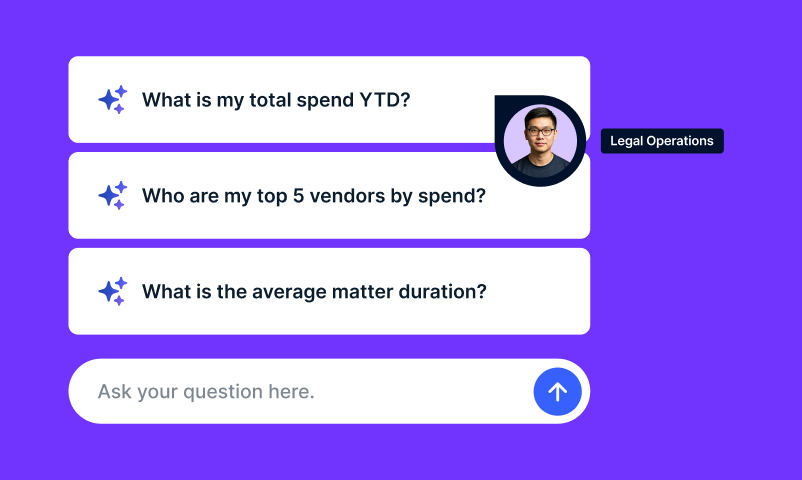
Ask Unity is an AI‑powered, conversational analytics experience embedded within the Unity SaaS application that allows authorized users to query and analyze legal operations data using plain English questions. Through a full page chatbot, users can ask questions such as “What is my total legal spend last year?” and receive structured, data backed responses, including summaries, tables, and visualizations sourced directly from Unity’s data warehouse. Ask Unity uses a large language model (LLM) in an agentic workflow, is constrained to supported data and defined behaviors, and inherits Unity’s role-based access controls (RBAC) to ensure users only see data they are authorized to access.

Commonly Asked Questions (Q&A)

Q: What makes Unity different from heritage Onit interfaces?
A: Unity introduces an AI-native, modern UI that unifies all Onit solutions—such as SimpleLegal, ContractWorks, ReadySign, CounselGO, and more—into a cohesive, scalable framework. This technical foundation allows us to continuously adapt, enhance, and update our solutions with greater speed and consistency across platforms.

Q: How does Onit ensure I’m not just activated, but adopted successfully?
A: Onit’s success model includes continuous Customer Success engagement, community programs, customer advisory boards, roundtables, and feedback loops under the OnitCX umbrella.

Q: How can I extend Unity to meet unique workflow needs?
A: Use Unity’s Workflow App Studio for out-of-the-box workflows or build custom automations with no code. Enhance operations further using AI Agent Studio.

Q: Where do I find training materials and release updates?
A: Head to the Resource Center. Stay informed via Onit’s blog and newsroom.

Q: What is Spend Agent, and why does it matter?
A: Spend Agent is an AI-native invoice review tool embedded in Unity. It automatically validates invoices against your guidelines, offers explainable AI feedback, speeds approvals, and strengthens vendor relations.

Q: Will my current SSO still work or be available in Unity?
A: Before activation, all SSO access points (including your SSO portal, SimpleLegal URLs, and email links) will direct users to SimpleLegal production. After activation, those same entry points will instead route users to Unity production, except when accessing via a SimpleLegal production URL, which will continue to log users into SimpleLegal.

Q: What are prompting best practices for Ask Unity?
A: Our team tested Ask Unity extensively and compiled our best practices and recommendations for Ask Unity here.

Q: How is Ask Unity using my data and do you have more information on your AI usage policies?
A: Ask Unity uses a large language model (LLM) to support data and defined behaviors through trained interaction, and it inherits Unity’s role-based access controls (RBAC) to ensure users only see data they are authorized to access. For more information on AI Usage – read here.